SSH key authentication and provisioning accounts
There are instances where you do not want easily guessable default passwords used in your ranges (malware analysis, honeypots, CTFs, etc). For these cases, Ludus can use certificate based SSH to provision VMs. Windows (10-1809, and server 2019 and newer), Linux, and macOS are supported.
To use certificate authentication, add this to an existing range configuration, then run a full ludus range deploy:
defaults:
  use_cert_auth: true
By default, Ludus keeps each template's provisioning account (i.e. localuser), installs the range's SSH public key, and replaces the template password with a random 64 character password after verifying a fresh administrative key login. Non-root Linux and macOS accounts receive passwordless sudo. Windows initially uses password-based HTTPS WinRM to install and configure native OpenSSH, then switches to PowerShell over SSH on port 22. Later deployments and testing-mode operations use the SSH key, not the provisioning password.
You can instead replace the template's provisioning account and use an account you specify:
defaults:
  use_cert_auth: true
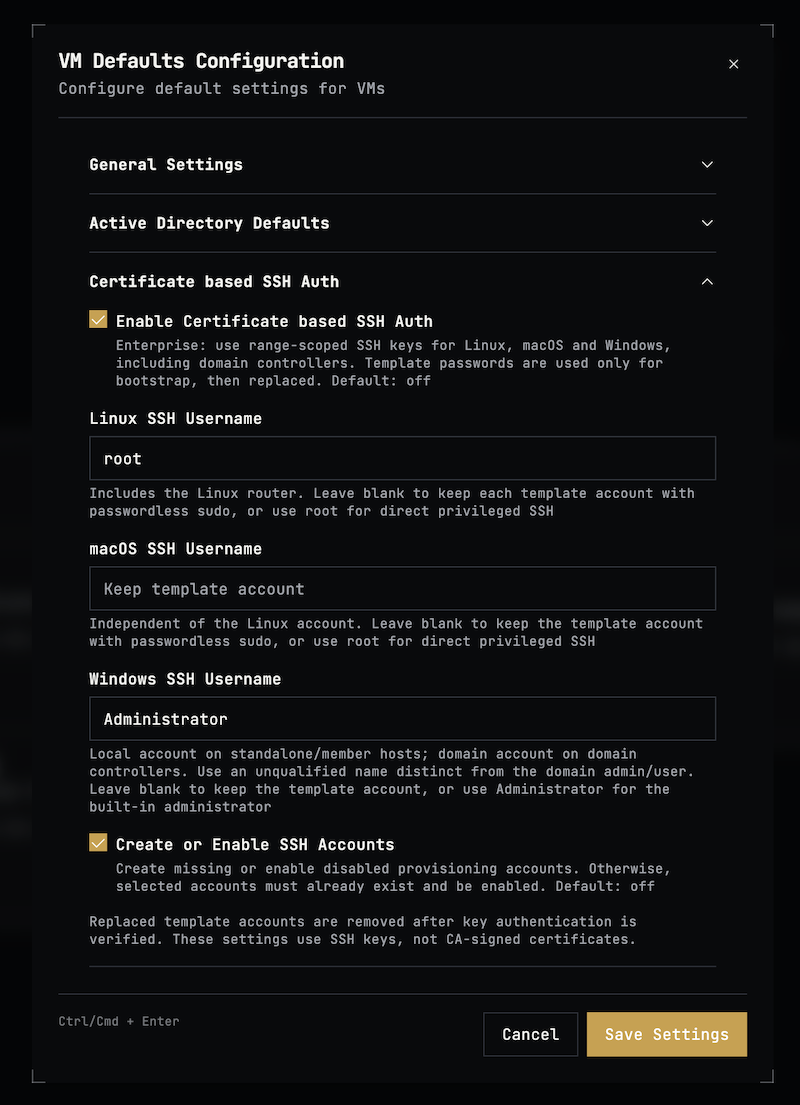
  cert_auth_linux_user: root # Which account to use for Ludus provisioning actions on Linux
  cert_auth_macos_user: root # Which account to use for Ludus provisioning actions on macOS
  cert_auth_windows_user: Administrator # Windows usernames must be unqualified SAM account names: local accounts on standalone/member hosts and domain accounts on domain controllers.
  cert_auth_create_accounts: false # Defaults to false which means the select accounts must exist and be enabled. If true, Ludus will create/enable the accounts selected above and give them passwordless sudo or Administrators group membership
cert_auth_create_accounts defaults to false. Without it, a selected custom account must already exist, be enabled, and be usable for login. With it, Ludus can create a missing account or enable a disabled one, including Administrator. Selected accounts receive administrative provisioning privileges (passwordless sudo on macOS/Linux; added to the Administrators group on Windows).
When a custom account replaces the template account, Ludus verifies a fresh SSH key login before removing the old account and its home/profile. Windows keeps the template key authorized during staging and removes that authorization only after verified retirement. Windows may reboot to end old sessions before deleting a loaded profile. UID-zero Linux and macOS accounts and the Windows RID-500 administrator are never deleted.
Keep Windows provisioning and template account names separate from defaults.ad_domain_admin and defaults.ad_domain_user. Domain roles still need those accounts and their configured passwords. Windows refuses to retire identities used by services; migrate those services explicitly before changing their accounts.
Template passwords will no longer work for SSH, WinRM, console login, or RDP. Windows template autologon is disabled, and template-account RDP files are no longer generated. Clearing use_cert_auth does not restore deleted accounts or passwords.
Preserve /opt/ludus/ranges/<rangeID>/machine-credentials and .machine-credentials-initialized marker in your server backups. Ludus will not regenerate missing or corrupt SSH keys for provisioned VMs.
Restoring a VM or DC to a snapshot taken before an account was retired can restore its old password while the Ludus host still considers it retired. Later deployments may skip password retirement. Ludus does not detect or reconcile this mismatch; a normal redeploy is not guaranteed to fix it. Only revert to snapshots taken after SSH provisioning has completed to prevent old users/passwords from accidentally being enabled.
WebUI
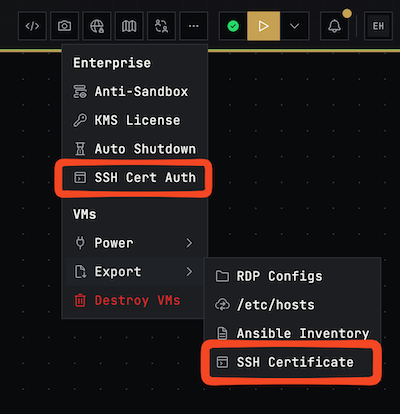
These options are available via the Web UI. Use the ... menu to access the SSH Cert Auth options and to export the SSH key after deployment.
Saved random passwords
For Linux, macOS, and Windows, Ludus saves each generated password on the controller before creating or changing the account:
/opt/ludus/ranges/<rangeID>/machine-credentials/passwords/<key-hash>/<scope>/<username>.password
<key-hash> identifies the range SSH public key. Local accounts use their VM name as <scope>; domain accounts share the primary DC's VM name, or the domain SID when no managed primary DC is configured. Windows usernames are lowercase, and filenames URL-encode account names.
The Ludus API and SSH-key download archive do not expose these passwords. They are available through the controller filesystem for troubleshooting. Knowing a saved password does not enable a disabled account or change its permitted login methods.
Passwords are saved before they are applied, so a failed deployment can leave a saved value that is not yet active. Guest snapshot reverts and manual password changes can also make the saved value differ from the account's current password. A saved file alone is not proof that the guest currently accepts that password.
Guest-side artifacts
SSH provisioning uses the following items inside guests:
| Platform | Artifact | Purpose |
|---|---|---|
| Windows | %ProgramData%\ssh\provisioning\keys\authorized_keys | Range public key, accessible only to SYSTEM and Administrators |
| Windows | %ProgramData%\ssh\provisioning\retired-profile.sid | Temporary account SID used to finish profile cleanup after account deletion or reboot |
| Windows | OpenSSH-Server, displayed as OpenSSH Server | Inbound TCP 22 firewall rule |
| Windows | OpenSSH-Reload | Temporary SYSTEM scheduled task for restarting SSH outside the current SSH session |
| macOS | /etc/ssh/provisioning | Root-only applied-password fingerprints and account policy data |
| Linux and macOS | /etc/sudoers.d/99-ssh-provisioning | Passwordless sudo for the selected non-root account |
Managed sshd_config blocks use # BEGIN SSH KEY AUTH and # END SSH KEY AUTH. Windows validates changes through a temporary sshd_config.provisioning-candidate file. The candidate, completed restart task, and retired-profile SID file are removed after their respective operations succeed.
Downloading a range's SSH keys
An authorized range user can download the existing credentials with the CLI:
ludus range machine-credentials -r MYRANGE -o machine-credentials.zip
The default output filename is machine-credentials.zip; use --output/-o to change it. On Unix-like systems, the CLI saves the archive with owner-only read/write permissions (0600).
The archive contains README.txt, ssh/ludus_ed25519, and ssh/ludus_ed25519.pub only. It does not create or rotate credentials. Treat the archive as administrative access to that range.
Compatibility
Windows requires 64-bit Windows PowerShell 5.1 or later, native OpenSSH for Windows 7.9 or later, the NetSecurity and ScheduledTasks modules, port 22, and the standard ProgramData\ssh\sshd_config service configuration. Ludus configures PowerShell as OpenSSH's default shell. A missing OpenSSH server is installed through the Windows capability mechanism, which requires access to Windows Update or a configured Features on Demand source. A template's disabled Windows Update service is temporarily enabled for installation, then restored. Older OpenSSH 7.7 builds are not accepted; preinstall a compatible version in those templates.
Sysprep before SSH-key deployment! If sysprep: true is enabled in the config and use_cert_auth: true is set Ludus will handle it correctly. If you deploy with use_cert_auth: true and then later add sysprep: true you will have a certified bad time™️ and will have to recreate the VM.
Windows public-key sessions use S4U tokens without reusable outbound credentials. SSH account/server staging and core DC and GPO operations run locally as SYSTEM. Custom roles that access remote AD services or network resources may need explicit module credentials or runas credentials; an SSH key is not a delegated domain password. See Ansible's Windows SSH guidance and Microsoft's LocalSystem account guidance.
Domain-join tasks and custom roles can supply ansible_become_password or ansible_runas_pass without re-enabling SSH password authentication.
macOS templates must have Remote Login enabled and Python 3 available.
On macOS, credential retirement refuses to change a SecureToken account while FileVault is enabled, and stops if FileVault is still encrypting/decrypting or its state cannot be determined. Use a fully decrypted disposable template or provisioning accounts that are not needed for disk unlock; preserve a separately verified unlock/recovery method. Automatic retirement of a replaced macOS template account also requires its standard /Users/<username> home directory.